

Use Product Metafields with TableFlow
Create and display product metafields in your storefront using TableFlow.
Step-by-Step Instructions
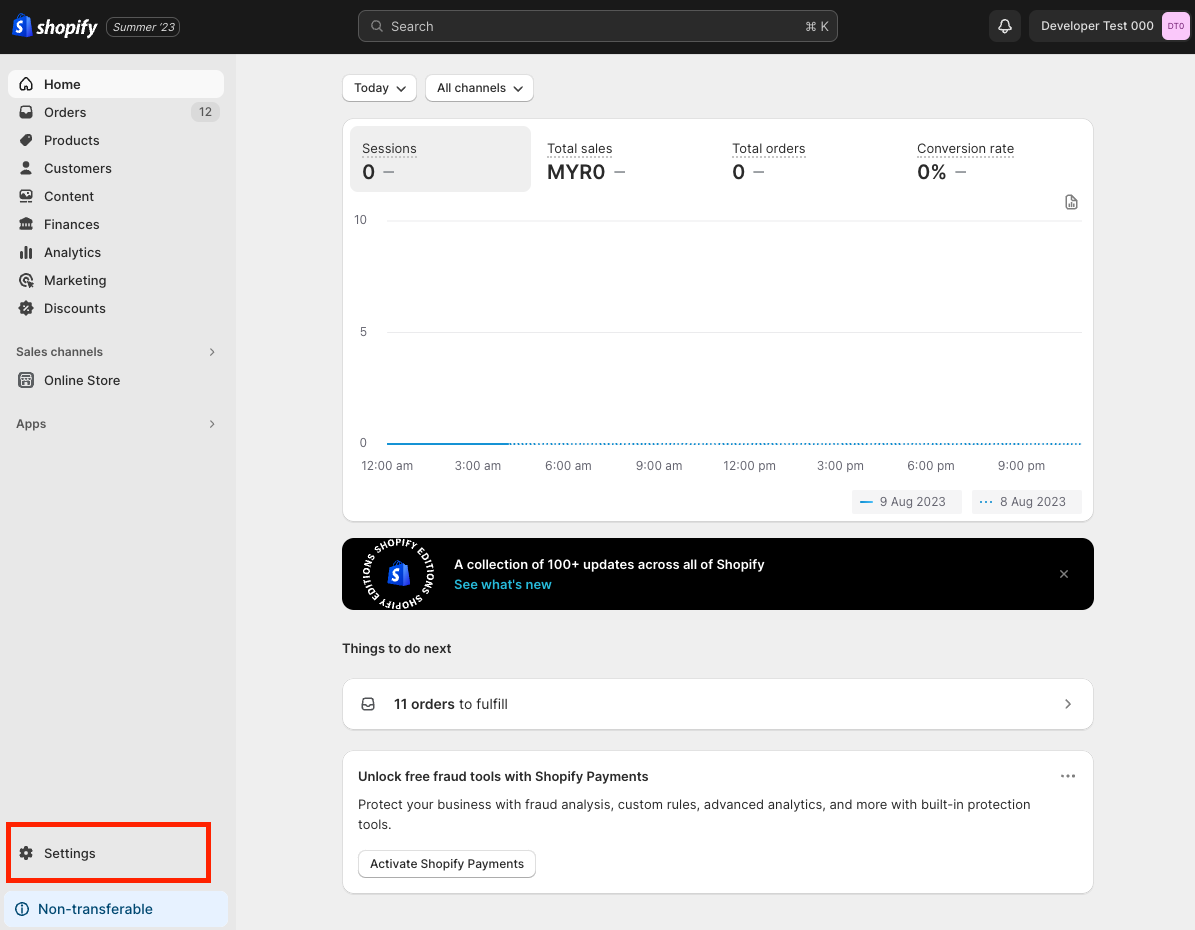
1. Access Settings
Navigate to the admin dashboard and click "Settings" to begin creating metafields.
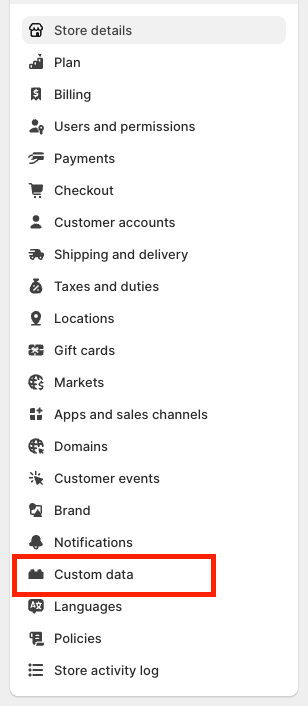
2. Navigate to Custom Data
Select "Custom data" where all metafields are managed.
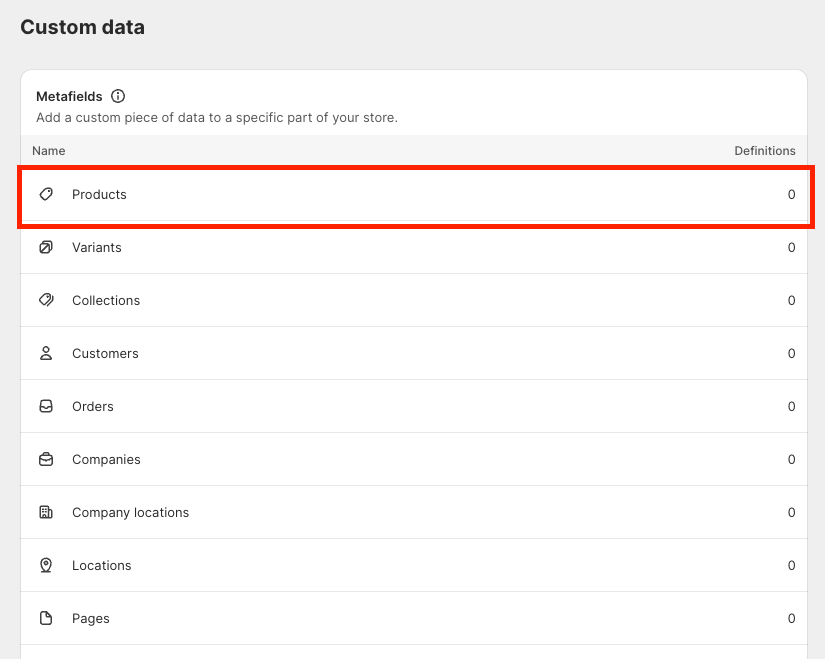
3. Choose Products
Click "Products" to create metafields for products.
Create variant metafields separately for variant-specific values. TableFlow updates these values in real-time when variants are selected.
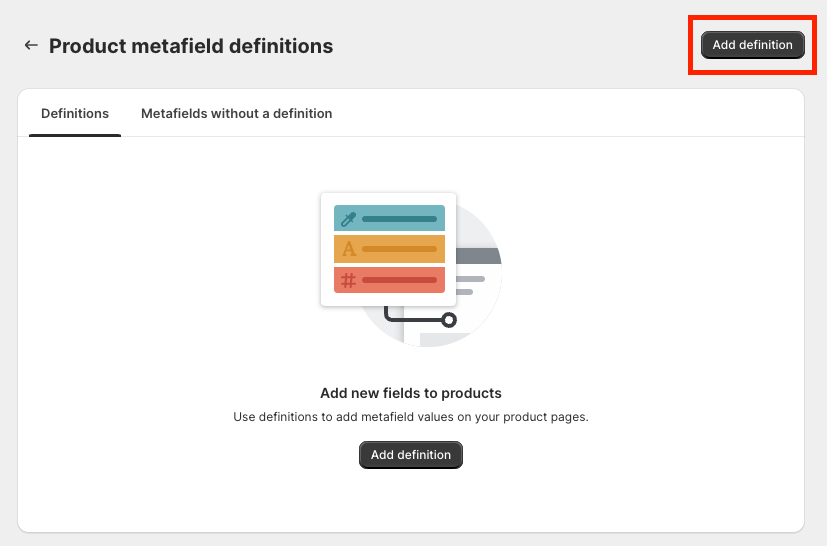
4. Add Definition
Click "Add definition" to define new metafields.
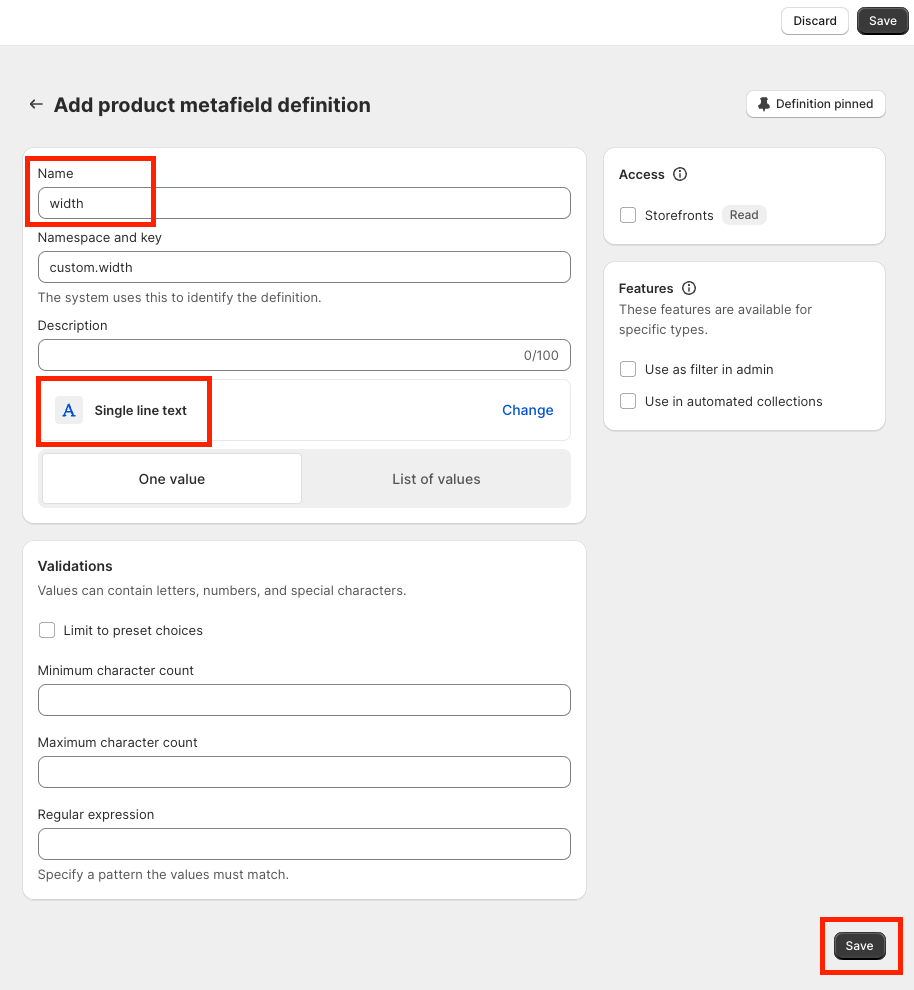
5. Create Metafield
For this example:
- Name: "Width"
- Type: "Single line text"
- Click "Save"
6. Edit Product
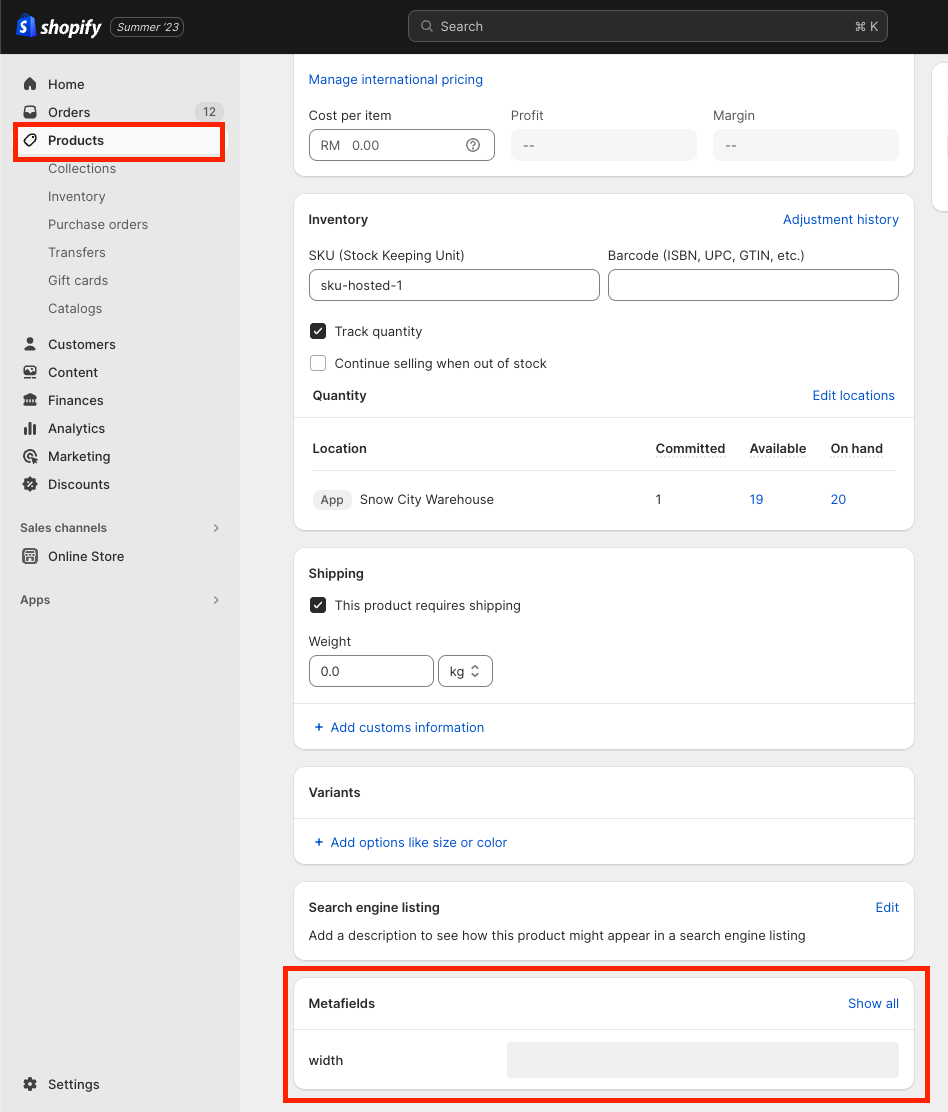
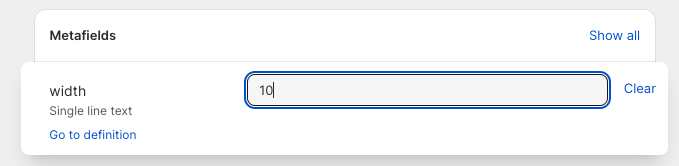
Go to your product page, select a product to edit, and scroll to the Metafields card at the bottom to enter the width value. Click "Save."
7. Configure TableFlow
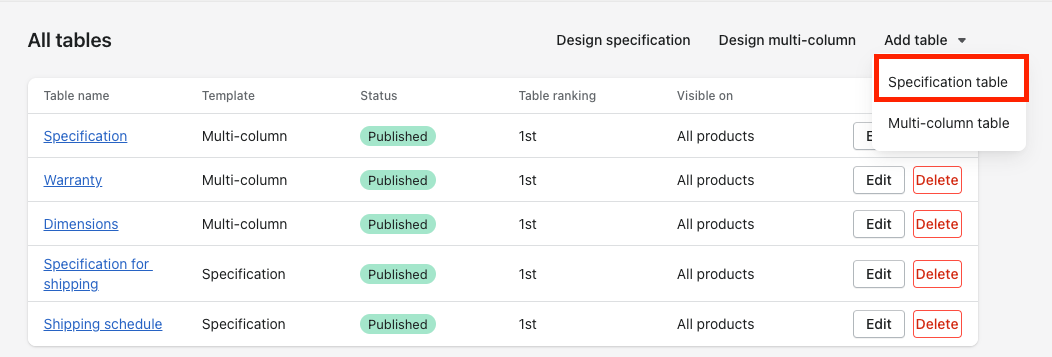
Open the TableFlow app and select "Specification table."
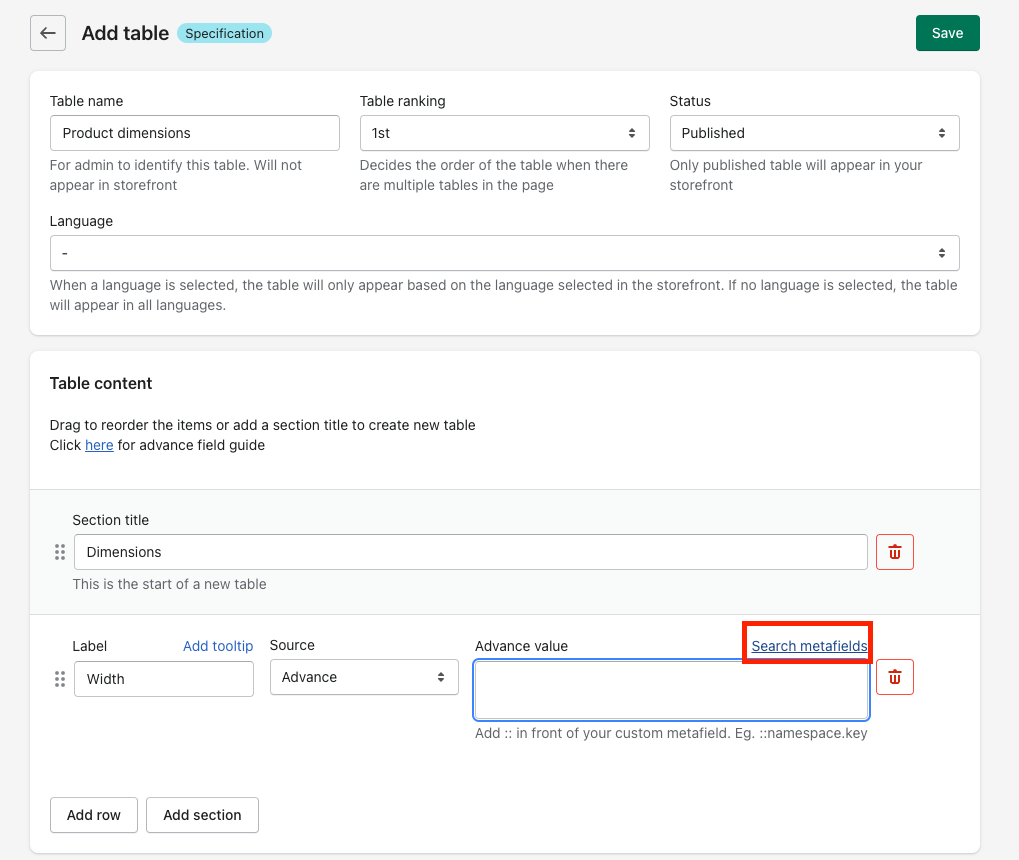
8. Search Metafields
Click "Search metafields" above the advance value field.
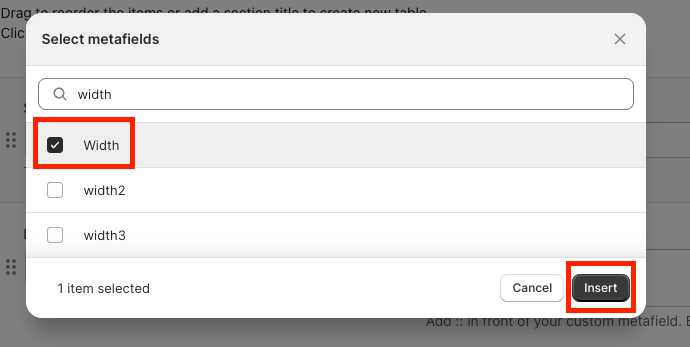
9. Insert Metafield
Select "Width" from the list and click "Insert."
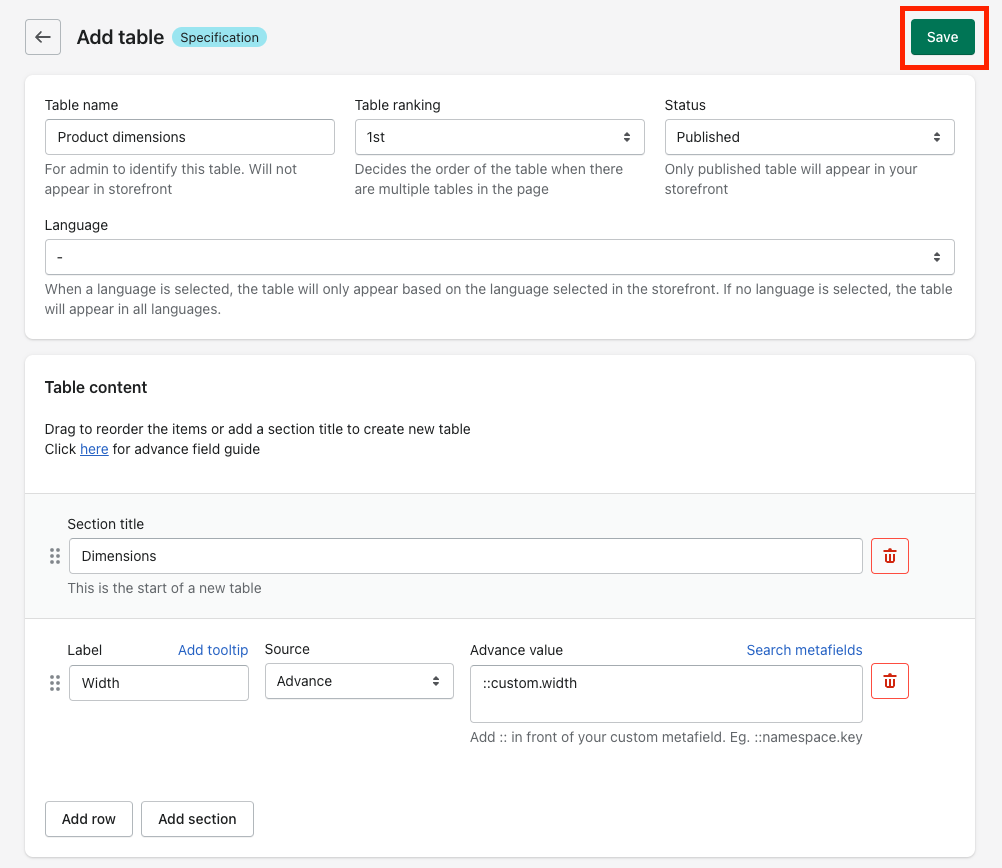
10. Combine Multiple Fields
You can combine metafields using syntax like:
::custom.width x ::custom.height
Click "Save" when complete.
Result
Once TableFlow is enabled and the theme app extension is added to your product page, the metafield data displays in a table on your storefront.