

Shopify Cart Drawer Upsells: Specific, Related, and Complementary Product Offers
Use BlueCart upsells to recommend a relevant add-on while shoppers are already reviewing their cart, helping increase average order value without interrupting checkout.
Overview
Cart drawer upsells work best when they feel like a helpful next step, not a random product carousel. A shopper who is already close to checkout may add one more item if the offer is relevant, easy to understand, and simple to act on.
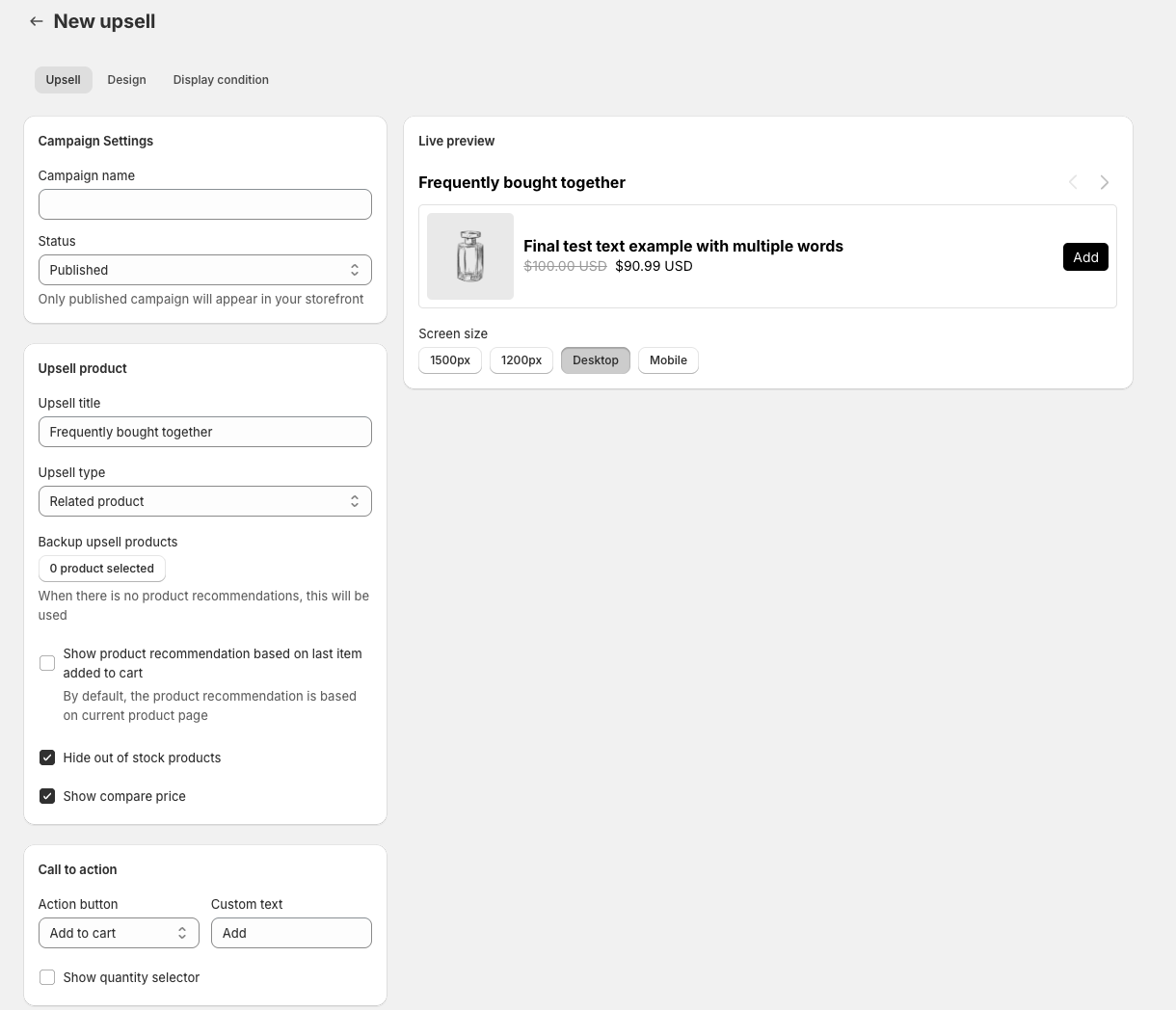
BlueCart lets you create cart upsell campaigns with:
- Specific products or variants selected by the merchant
- Related product recommendations
- Complementary product recommendations
- Add-to-cart or view-product buttons
- Optional quantity selectors
- Slider layouts with one or more rows
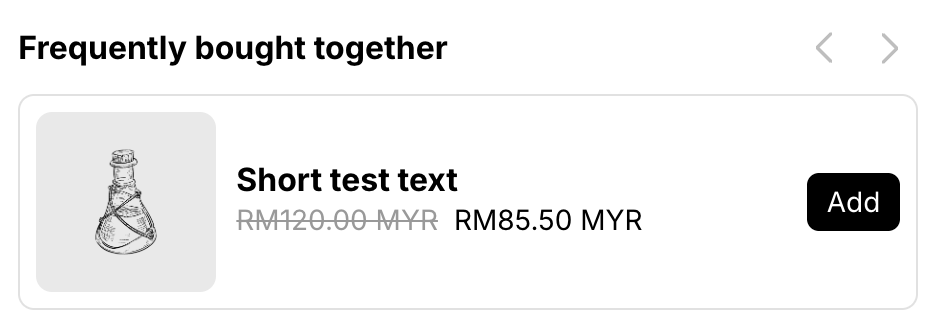
- Compare-at price display
- Out-of-stock product hiding
- Display rules based on cart contents, cart value, customer tags, Shopify Markets, UTM parameters, active dates, and discounts
In the BlueCart admin, the upsell builder shows the campaign settings, upsell source, action controls, and live preview in one place:
The published widget appears in the cart drawer or cart area where you place the BlueCart block or shortcode:
Upsells pair well with progress bars. For example, use a progress bar to show "Spend $18 more for free shipping" and an upsell widget to suggest products that help the shopper reach that threshold.
Choose an Upsell Type
BlueCart supports three upsell sources. Choose the source based on how much control you want over the products shown.
| Upsell type | Best for | How it works |
|---|---|---|
| Specific product | Promoting known products, bundles, samples, best sellers, or campaign-specific items | You select the exact products or variants BlueCart should show. |
| Related product | Showing products similar to what the shopper is viewing or has in cart | BlueCart requests Shopify related recommendations and shows the returned products. |
| Complementary product | Showing add-ons, accessories, refills, matching items, or products often bought together | BlueCart requests Shopify complementary recommendations and shows the returned products. |
Specific Product Upsells
Use Specific product when you already know what you want to promote. This is the most controlled option.
Good examples:
- Add socks to a shoe order
- Add a warranty or care kit to an electronics order
- Add a low-cost product that helps the shopper reach free shipping
- Promote a seasonal product during a campaign
- Show a bundle component or refill product
You can select products or variants, and BlueCart can hide products that are out of stock.
Related Product Upsells
Use Related product when you want Shopify recommendations to supply similar products. BlueCart asks Shopify for related product recommendations and renders those products in the upsell widget.
This works well when:
- A shopper may want another style, color, or product from the same category
- Your product catalog has useful recommendation data
- You want a dynamic offer instead of a fixed product list
Complementary Product Upsells
Use Complementary product for add-ons that complete the purchase. BlueCart asks Shopify for complementary recommendations and shows those products in the cart upsell.
This works well for:
- Accessories
- Refills
- Care products
- Matching sets
- Replacement parts
- Items commonly bought with the cart product
Configure the Offer
After choosing the upsell type, configure how shoppers act on the offer.
Choose the Button Action
BlueCart supports two button actions:
- Add to cart - Adds the upsell product directly from the widget.
- View product - Sends the shopper to the product page for more details.
In the BlueCart admin, open the Upsell tab and use the Call to action card to choose the button action and edit the button text.
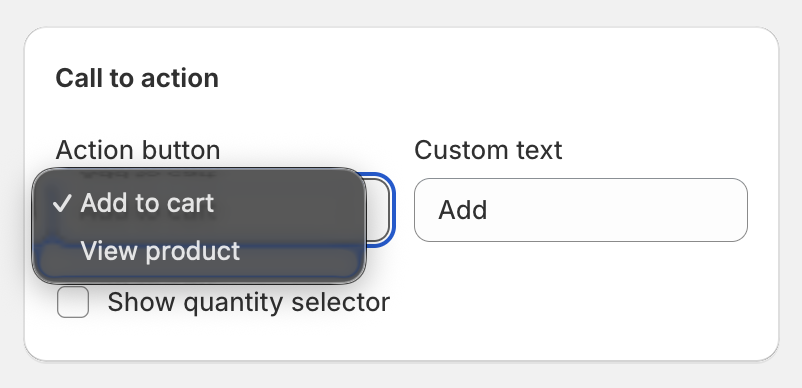
Use Add to cart for simple products, refills, accessories, samples, and products that do not need much explanation.
Use View product when shoppers need to choose options, read specifications, compare variants, or understand a higher-priced item before buying.
Customize the Button Text
The default action text is simple, but you can make it more specific:
AddAdd socksAdd gift wrapView detailsSee optionsChoose size
Short labels usually work better in cart drawers because horizontal space is limited.
Enable the Quantity Selector
If shoppers may want more than one upsell item, enable the quantity selector. This is useful for:
- Consumables
- Samples
- Refills
- Multipacks
- Small accessories
Keep the selector disabled for one-off add-ons like gift wrap, warranties, and single accessories.
Refresh the Cart After Add-to-Cart
Some Shopify themes update the cart drawer automatically after an Ajax add-to-cart event. Others need a refresh or a specific cart drawer button selector.
If the cart drawer does not update after adding the upsell product, enable BlueCart's cart refresh behavior and test it on your live theme.
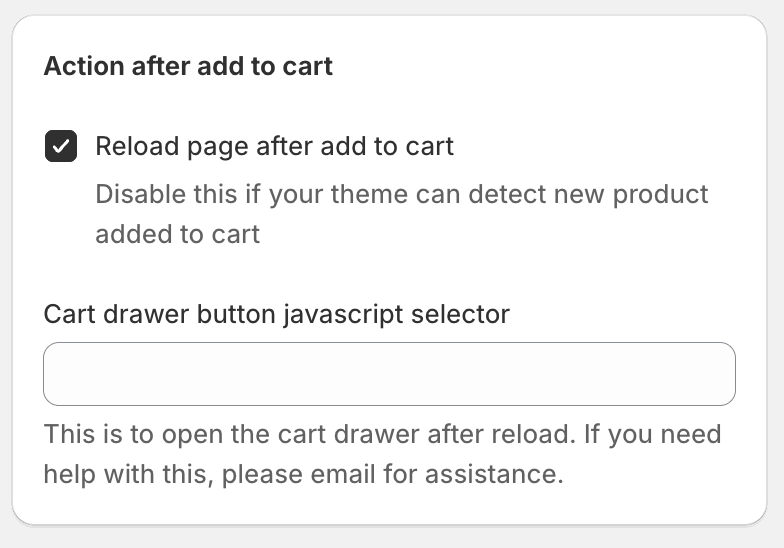
Use the cart drawer selector only when your theme needs BlueCart to reopen the drawer after the page reloads. If your theme already updates and keeps the drawer open, leave the selector blank.
Design the Cart Widget
The upsell widget should be easy to scan inside a small cart drawer.
BlueCart design controls include:
- Widget title
- Product image size
- Product title color, font size, and font weight
- Product price color, font size, and font weight
- Compare-at price display
- Button color, text color, font size, and border radius
- Container padding, border, and radius
- Quantity selector styling
- Product title truncation or wrapping
Choose a Slider Layout
Use a slider when you want to show multiple products without taking over the cart drawer.
BlueCart supports:
- Single-row slider
- Two-row slider
- Three-row slider
- Products per slide
- Minimum slide width
- Previewing part of the next product so shoppers can tell the section scrolls
- Auto-slide speed
For most cart drawers, start with one row and one visible product. Add a partial next product only when the drawer has enough room.
Add to Your Store
After the campaign is configured, add BlueCart where shoppers will see it during the buying decision.
For product pages, collection pages, and home page sections, use the BlueCart app block in the Shopify theme editor.
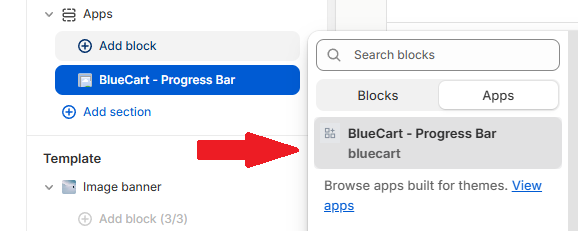
For cart drawers and custom cart templates, use the BlueCart shortcode method so the upsell appears in the exact cart area you choose.
<div data-id="YOUR_CAMPAIGN_ID" class="bcpb-bluecart"></div>
Replace YOUR_CAMPAIGN_ID with the campaign ID from BlueCart. The BlueCart app embed must be enabled for shortcode placements.
Target the Upsell
Cart upsells should change based on what is in the cart. BlueCart display rules let you control when each upsell appears.
| Display rule | Example use case |
|---|---|
| Active dates | Show a holiday upsell only during a sale period. |
| Cart value before discount | Show an add-on only when cart value is below a free shipping threshold. |
| Cart value after discount | Avoid showing an offer when discounts already changed the economics. |
| Only signed-in customers | Show a loyalty add-on only to logged-in customers. |
| Product in cart | Show shoe care products when shoes are in the cart. |
| Shopify Markets | Show market-specific add-ons only where they can be shipped. |
| Customer tags | Show VIP, wholesale, or loyalty offers to matching customers. |
| UTM parameters | Match the upsell to a paid campaign, influencer link, or email campaign. |
| Discount in cart | Hide the upsell when a specific discount is already applied. |
| Any discount in cart | Hide the upsell when the shopper already has a discount. |
Avoid showing every upsell to every shopper. One relevant offer usually beats a long list of products that distracts from checkout.
Test Before Publishing
Before publishing the upsell campaign, test it like a shopper would.
- Add a product that should trigger the upsell.
- Open the cart drawer or cart page where BlueCart is placed.
- Confirm the correct upsell products appear.
- Click Add to cart or View product.
- If using Add to cart, confirm the cart drawer updates correctly.
- Test the quantity selector if it is enabled.
- Test out-of-stock products if you are hiding unavailable items.
- Test display rules by changing cart value, discounts, customer state, or market.
- Switch the campaign from Draft to Published when the behavior is correct.
Recommended Setups
Start with a narrow setup that matches one shopper intent. You can add more campaigns after the first one proves it is relevant.
Recommended First Campaign
For a first cart drawer upsell, start simple:
| Setting | Recommendation |
|---|---|
| Upsell type | Specific product |
| Product choice | One low-friction add-on or best seller |
| Button action | Add to cart |
| Quantity selector | Off unless the product is commonly bought in multiples |
| Slider | One row, one product visible |
| Display rule | Product in cart or cart value below a threshold |
This gives you a clean baseline before testing dynamic recommendations or more advanced rules.
Common Cart Upsell Patterns
| Goal | Suggested setup |
|---|---|
| Increase free-shipping progress | Specific product, Add to cart, one low-priced add-on, show when cart value is below the threshold. |
| Sell accessories | Complementary product, Add to cart, hide out-of-stock products, show when the main product is in cart. |
| Promote similar products | Related product, View product, one-row slider, backup products selected. |
| Sell consumables or refills | Specific product, Add to cart, quantity selector enabled, compare-at price shown when useful. |
Troubleshooting
The upsell does not appear
Check that the campaign is Published, the BlueCart app embed is enabled, and the app block or shortcode is placed in the cart drawer, cart template, product page, or theme section where you expect it to render.
If the campaign uses display rules, test with a cart that matches those rules. A product-in-cart rule, cart value rule, market rule, customer tag rule, discount rule, or date rule can prevent the upsell from showing.
Related or complementary products do not appear
Related and complementary upsells depend on Shopify recommendations. Add backup upsell products so BlueCart can still show an offer when recommendations are not returned.
The cart drawer does not refresh after Add to cart
Enable Reload page after add to cart in the Action after add to cart settings. If your theme closes the drawer after reload, add the cart drawer button JavaScript selector and test it on the live theme.
Out-of-stock products are showing
Enable Hide out of stock products in the upsell product settings. Then test with a product or variant that is unavailable to confirm the widget hides it.
FAQ
- Name
Can I choose exact products?- Description
Yes. Use the Specific product upsell type to select the products or variants you want BlueCart to show.
- Name
Can BlueCart use product recommendations?- Description
Yes. BlueCart supports related and complementary product upsells using Shopify product recommendations.
- Name
Can shoppers add the product from the cart drawer?- Description
Yes. Choose the Add to cart action. You can also enable a quantity selector for products shoppers may buy in multiples.
- Name
Can I hide out-of-stock products?- Description
Yes. BlueCart can hide unavailable upsell products so shoppers do not see products they cannot buy.
- Name
Can I target upsells by market or customer tag?- Description
Yes. BlueCart display rules support Shopify Markets, customer tags, UTM parameters, cart value, discounts, products in cart, and active dates.
- Name
Should I use add-to-cart or view-product?- Description
Use Add to cart for simple add-ons. Use View product when the shopper needs more details, options, or variant selection.
Related Guides
Need More Help?
Need help choosing the right cart drawer upsell setup for your store? Support is available.