

Table Locations
Locations let you control exactly where each table appears on your storefront by matching tables to placement points on your product pages.
What are Locations?
A location is a numbered slot (1 through 8) that connects a table you create in the TableFlow admin to a specific spot on your storefront. Think of it like a channel number — the table is assigned to a channel, and the storefront block is tuned to that channel. When the numbers match, the table appears.
Every location has two sides:
- Table side — In the TableFlow admin, when you create or edit a table, you check which location numbers (1–8) the table should appear in.
- Storefront side — In the Shopify Theme Customizer, each TableFlow block has a "Table location" setting where you select a single location number (1–8).
A table only appears on your storefront when both sides match — the table has that location checked and the block is set to the same location number.
Setting Up Locations
Step 1: Assign a Location to Your Table
- Open the TableFlow admin and create or edit a table
- Scroll to the "Table locations" section
- Check the location numbers where you want this table to appear

New tables have Location 1 checked by default. For single-table setups, you don't need to change anything.
Step 2: Set the Location on Your Storefront Block
- Go to Shopify Admin → Online Store → Customize
- Navigate to your product page template
- Add or select a "TableFlow - Specification" block
- In the block settings, set the "Table location" dropdown to match your table's location number
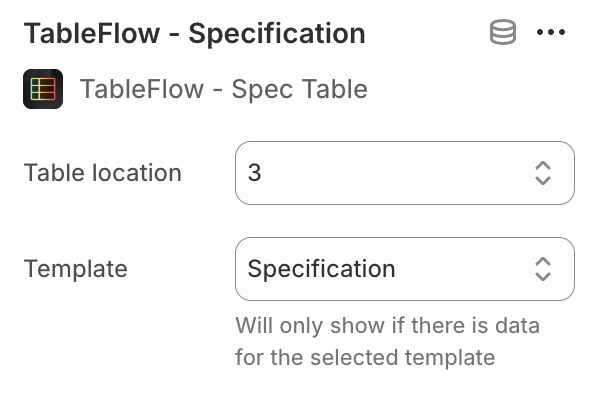
Result
The table now appears wherever you placed the block. Only tables with a matching location number will display in that block.
Common Use Cases
Single table on a product page
This is the simplest setup. Create a table and leave Location 1 checked (the default). Add one TableFlow block to your product page and leave it on Location 1. The table appears automatically — no extra configuration needed.
Two tables in different positions
If you want a specs table above the product description and a sizing chart below it:
- Create the specs table and check Location 1 only
- Create the sizing chart and check Location 2 only
- In the Theme Customizer, add two TableFlow blocks:
- First block set to Location 1 — drag it above the description
- Second block set to Location 2 — drag it below the description
Each block only shows its matching table.
Same table in multiple spots
To show the same table in two different positions on the page:
- Create the table and check both Location 1 and Location 3
- Add a TableFlow block at the first position and set it to Location 1
- Add another TableFlow block at the second position and set it to Location 3
The same table renders in both spots.
Organizing tables by type
If you have different table types (e.g., specification tables and sizing charts):
- Assign all specification tables to Location 1
- Assign all sizing charts to Location 2
- Set the block for specs to Location 1
- Set the block for sizing charts to Location 2
Each block displays only its relevant tables.
Preparing tables without publishing
To build tables without showing them on your storefront:
- Create the table and check only Location 5 (or any unused location)
- Since no block on your storefront is set to Location 5, the table stays hidden
- When ready, either change the table to Location 1 or add a new block set to Location 5
Tips
- Location numbers are just IDs — Location 1 doesn't mean "first position on the page." The position is determined by where you place the block in the Theme Customizer.
- A table can belong to multiple locations — Check as many locations as you need when a table should appear in more than one spot.
- You only need one location for most stores — If you have a single table per product, the defaults (Location 1 on both sides) work without any changes.
- Unused locations are safe — If a table is assigned to a location that has no matching block, nothing happens. The table simply won't appear.